

Github Action
Use our github action to deploy your website easily to Github pages. Git push and your changes will automatically be deployed
If you are using one of the templates for your site, you will see a file located at .github/workflows/static.yml. This is the Github action you can use to auto-deploy your site. If you are creating a custom template you can copy the Github Action file here.
Setting up the Github Action to AutoDeploy
After you push your website to a Github repo you will need to navigate to [Settings]->[Pages] and you'll see a dropdown under the Build and deployment section.
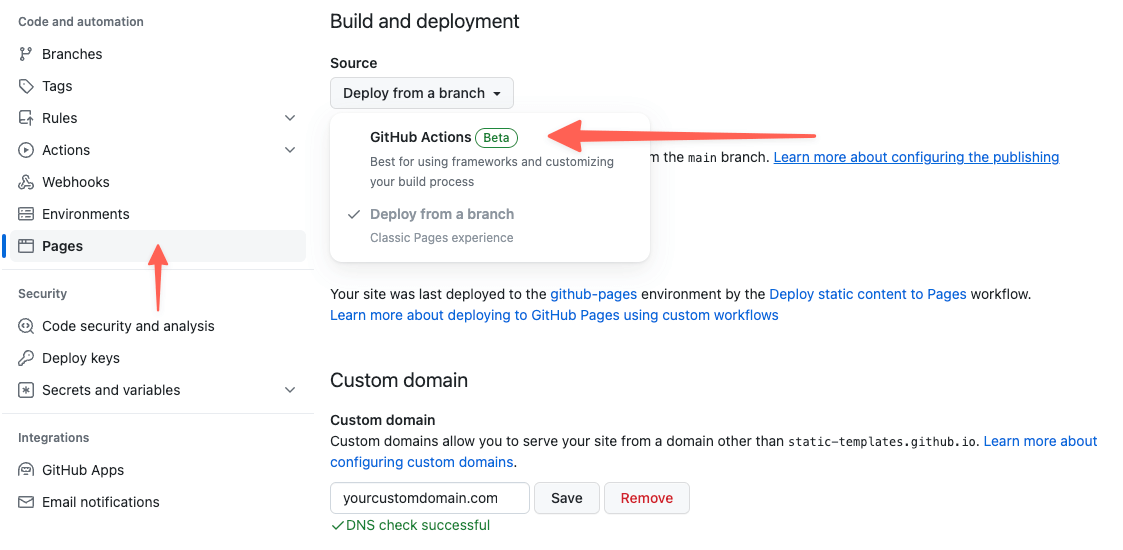
You'll want to select Github actions in that dropdown. After you have made those changes your site will be deployed the next time you make a change and push to your main branch.
You may also wish to add a custom domain instead of using a Github subdomain.
Configuration
If you are not using a custom domain and your website is inside of a subfolder (https://my-org.github.com/my-website/), you will need to make a modification to the build step inside of your static.yml file.
Locate the section with the following name: Run the static build step and you'll see on the next line the run command run: npx @devdojo/static build. At the end of this run command you'll need to add the URL of your website, like so:
- name: Run the static build step
  run: npx @devdojo/static build https://my-org.github.com/my-website/
When your site is built, it will use that URL as an absolute URL for all your assets and images.
Other ways to host your website
You may want to host your website on another static hosting platform, or on your own server. That's what we'll cover in the next section.